Systems Administration
Systems Administration — Operational Mentality#
Focus: Keeping systems running
Strength: Deep understanding of OS, networking, services, and failure modes
Approach:
Manual intervention
Scripts and cron jobs
Human-driven detection and recovery
Question asked:
“How do I fix this when it breaks?”
1. Introduction / Purpose#
This documentation provides comprehensive guidance for managing cloud infrastructure, Linux servers, and Windows Server environments.
It is intended for IT staff, and Systems Administrators alike.
2. Environment Overview#
Systems and IT infrastructure generally operate under three primary environments: Development, Testing (Staging), and Production. Each environment serves a specific role in the system lifecycle and must be managed not only for functionality, but also for cost efficiency, security, and operational stability.
In addition to environment separation, systems administration must account for resource utilization, cost optimization, and continuous monitoring of both cloud and physical IT assets.
2.1 Environment Classification#
Development Environment#
Used for development, experimentation, and initial configuration testing.
Systems in this environment are expected to change frequently.
Cost optimization is critical due to non-production usage.
Administrative Considerations:
Use smaller instance sizes (e.g., AWS t-series, Azure B-series).
Implement auto-shutdown schedules for unused resources.
Limit access to developers and system administrators only.
Minimal monitoring, focused on availability rather than performance.
Testing / Staging Environment#
Serves as a pre-production validation environment.
Closely mirrors production configurations.
Administrative Considerations:
Use snapshots and backups for rollback testing.
Enable monitoring and logging to simulate production behavior.
Maintain cost parity with production while avoiding over-provisioning.
Temporary resources should be removed after testing cycles.
Production Environment#
Live environment serving end users and business operations.
Requires high availability, security, and performance.
Administrative Considerations:
Strict access control (IAM roles, RBAC, least privilege).
Continuous monitoring and alerting enabled.
High-availability and redundancy implemented.
Regular patching, backups, and disaster recovery plans enforced.
2.2 Cost Optimization Responsibilities#
Cost optimization is a core responsibility of a systems administrator, particularly in cloud-based environments. Resources must be provisioned efficiently while maintaining system reliability.
Key Cost Optimization Practices:
Right-sizing virtual machines based on actual usage metrics.
Removing unused or orphaned resources (disks, snapshots, IPs).
Using reserved or savings plans for long-running workloads.
Implementing auto-scaling and auto-shutdown policies.
Monitoring cloud billing dashboards and usage reports.
Example Tools:
AWS Cost Explorer
Azure Cost Management
CloudWatch / Azure Monitor metrics
2.3 IT Equipment and Infrastructure Monitoring#
Monitoring extends beyond cloud resources and includes servers, network devices, and endpoint equipment.
Monitored Assets Include:
Cloud servers (CPU, memory, disk, network usage)
On-prem or virtualized servers
Network devices (routers, switches, firewalls)
Storage systems
End-user IT equipment (where applicable)
Monitoring Objectives:
Detect failures and performance degradation early.
Prevent downtime through proactive alerts.
Ensure hardware and systems operate within expected thresholds.
Maintain inventory visibility and lifecycle tracking.
Common Monitoring Metrics:
CPU, RAM, and disk utilization
Network latency and packet loss
Service uptime and response times
Hardware health indicators
2.4 Administrative Oversight#
A systems administrator is responsible for maintaining operational awareness across all environments.
Administrative Tasks Include:
Asset inventory management
Patch and update scheduling
Access and permission audits
Incident response and root cause analysis
Documentation of system changes and configurations
2.5 Summary#
Effective systems administration requires balancing environment separation, cost efficiency, and infrastructure monitoring. Proper planning and continuous oversight ensure systems remain secure, performant, and financially sustainable across all environments.
Note: Proper segregation of environments ensures that changes are tested safely before affecting users, reduces downtime, and improves system reliability.
3. Server Administration Overview#
This section provides an overview of Linux and Windows Server administration, including commonly used commands and administrative tasks required for daily operations, monitoring, and maintenance.
3.1 Linux Server Overview#
Linux servers are commonly used for web services, application servers, databases, and infrastructure tooling due to their stability, performance, and flexibility.
Common Linux Server Roles#
Web servers (Nginx, Apache)
Application servers
Database servers
Bastion hosts
CI/CD runners
Core Administrative Responsibilities#
User and permission management
Service management
System monitoring
Patch management
Backup and recovery
Security hardening
3.1.1 Common Linux Administrative Commands#
System Information & Monitoring#
uptime | awk '{print $1,$2,$3}' top -b -n 1 | head -n 20 free -m | grep Mem df -h | grep -E '^/dev/' du -sh /var/log/* | sort -h
Process & Service Management#
ps aux | grep nginx | grep -v grep systemctl list-units --type=service | grep running systemctl status nginx | grep -E 'Active|Loaded' journalctl -u nginx | tail -n 50
User & Permission Management#
cat /etc/passwd | grep sysadmin getent group sudo | grep sysadmin ls -ld /var/www | awk '{print $1,$3,$4}'
Package Management#
apt list --upgradable | grep security yum check-update | grep -v '^Loaded'
Networking#
ip a | grep inet ss -tuln | grep LISTEN ping -c 4 google.com | grep 'packet loss' traceroute google.com | tail -n 5
Log Analysis#
cat /var/log/auth.log | grep sshd | tail -n 20 journalctl | grep error | head -n 20
3.1.2 Linux Server Best Practices#
Disable root SSH login
Use SSH key-based authentication
Enable firewall (UFW or firewalld)
Schedule automated backups
Monitor logs regularly
3.2 Windows Server Overview#
Windows Server is commonly used for enterprise environments requiring centralized identity management, file services, and Microsoft-based workloads.
Common Windows Server Roles#
Active Directory Domain Controller
File and Print Server
DNS and DHCP Server
Application Server
Core Administrative Responsibilities#
User and group management
Group Policy administration
Server role management
Event log monitoring
Patch management
3.2.1 Common PowerShell Administrative Commands#
System Information#
Get-ComputerInfo | Select-Object OsName, OsVersion, CsName Get-Process | Sort-Object CPU -Descending | Select-Object -First 10 Get-Service | Where-Object {$_.Status -eq "Running"}
User & Group Management (Active Directory)#
Get-ADUser -Filter * | Select-Object Name, Enabled Get-ADGroupMember "Domain Admins" | Select-Object Name Get-ADUser sysadmin | Format-List *
Service Management#
Get-Service | Where-Object {$_.Name -like "*update*"} Get-Service wuauserv | Select-Object Status, StartType
Disk & Resource Monitoring#
Get-Volume | Where-Object {$_.DriveType -eq 'Fixed'} Get-PSDrive | Sort-Object Used -Descending Get-Counter '\Processor(_Total)\% Processor Time' | Select-Object -ExpandProperty CounterSamples
Event Logs#
Get-WinEvent -LogName System | Where-Object {$_.LevelDisplayName -eq "Error"} | Select-Object -First 20 Get-EventLog Security | Where-Object {$_.EventID -eq 4625} | Select-Object TimeGenerated, Message
3.2.2 Windows Server Best Practices#
Enforce least privilege via AD and GPO
Regularly review event logs
Enable Windows Defender and firewall
Apply scheduled updates and patches
Maintain regular system backups
3.4 Operational Considerations#
Both Linux and Windows servers must be monitored and maintained consistently to ensure performance, security, and cost efficiency.
Key Focus Areas:
Resource utilization tracking
Alerting and incident response
Automation using scripts
Documentation of configuration changes
4. AWS Administration#
AWS (Amazon Web Services) provides scalable cloud infrastructure for servers, storage, networking, and applications. As a Systems Administrator, responsibilities include instance management, storage, security, monitoring, cost optimization, and automation.
4.1 AWS Core Services for Sysadmins#
| Service | Purpose |
|---|---|
| EC2 | Virtual servers (instances) for workloads |
| S3 | Object storage for backups, logs, assets |
| IAM | User, group, and role management |
| CloudWatch | Monitoring and alerting |
| VPC | Network configuration and security |
| RDS / DynamoDB | Managed database services |
4.2 EC2 Management#
Listing running instances and filtering by state:
aws ec2 describe-instances \ --query "Reservations[*].Instances[*].[InstanceId,State.Name,Tags]" \ --output table | grep running
Start / Stop instances with filtering:
aws ec2 start-instances --instance-ids i-0123456789abcdef0 aws ec2 stop-instances --instance-ids i-0123456789abcdef0
Get instance CPU utilization using CloudWatch:
aws cloudwatch get-metric-statistics \ --metric-name CPUUtilization \ --start-time $(date -u +"%Y-%m-%dT%H:%M:%SZ" -d "1 hour ago") \ --end-time $(date -u +"%Y-%m-%dT%H:%M:%SZ") \ --period 300 \ --namespace AWS/EC2 \ --statistics Average \ --dimensions Name=InstanceId,Value=i-0123456789abcdef0 | jq '.Datapoints[] | {Timestamp, Average}'
4.3 S3 Management#
Listing buckets and filtering:
aws s3 ls | grep backup
Copy files to S3 with progress and filtering:
aws s3 cp /var/log/ s3://company-backup/logs/ --recursive --exclude "*" --include "*.log" | tee s3-upload.log
Check bucket storage usage:
aws s3 ls s3://company-backup/logs/ --recursive | awk '{sum+=$3} END {print sum/1024/1024 " MB"}'
4.4 IAM (Identity and Access Management)#
List all users and their attached policies:
aws iam list-users | jq -r '.Users[].UserName' | while read user; do echo "User: $user" aws iam list-attached-user-policies --user-name $user | jq -r '.AttachedPolicies[].PolicyName' done
Check last login and inactivity:
aws iam list-users | jq -r '.Users[] | [.UserName, .PasswordLastUsed] | @tsv' | grep -v null
4.5 Monitoring & Alerts (CloudWatch)#
Get top 5 instances by CPU utilization:
aws cloudwatch list-metrics --namespace AWS/EC2 --metric-name CPUUtilization \ | jq -r '.Metrics[].Dimensions[] | .Name + " " + .Value' | sort | uniq -c | sort -nr | head -n5
Set CloudWatch alarm example:
aws cloudwatch put-metric-alarm \ --alarm-name HighCPUUtilization \ --metric-name CPUUtilization \ --namespace AWS/EC2 \ --statistic Average \ --period 300 \ --threshold 80 \ --comparison-operator GreaterThanThreshold \ --dimensions Name=InstanceId,Value=i-0123456789abcdef0 \ --evaluation-periods 2 \ --alarm-actions arn:aws:sns:us-east-1:123456789012:NotifyMe
4.6 Cost Optimization Practices#
Identify idle EC2 instances:
aws ec2 describe-instances --filters "Name=instance-state-name,Values=running" \ | jq -r '.Reservations[].Instances[] | select(.CpuOptions.CoreCount==1) | .InstanceId'
List unattached EBS volumes:
aws ec2 describe-volumes --filters Name=status,Values=available | jq -r '.Volumes[].VolumeId'
Monitor S3 storage usage by bucket:
aws s3 ls | awk '{print $3}' | xargs -I {} aws s3 ls s3://{} --recursive | awk '{sum+=$3} END {print sum/1024/1024 " MB"}'
4.7 Operational Notes#
Always tag resources properly (
Environment,Owner,Project) for monitoring and cost tracking.Use automation scripts for repetitive tasks like backups, snapshots, and scaling.
Regularly review CloudWatch metrics, billing dashboards, and IAM audit logs.
Combine
aws-cliwithjq,grep,awkfor filtering and reporting.
5. Microsoft Azure Administration#
Azure provides cloud infrastructure for compute, storage, networking, and identity services. As a Systems Administrator, responsibilities include VM and resource management, identity & access control, monitoring, automation, and cost optimization.
5.1 Core Azure Services for Sysadmins#
| Service | Purpose |
|---|---|
| Azure Virtual Machines (VMs) | Virtual servers for workloads |
| Azure Storage | Blob storage, file shares, and backups |
| Azure Active Directory (AAD) | Identity and access management |
| Azure Monitor | Metrics, logs, and alerting |
| Resource Groups | Logical organization of resources |
| Virtual Networks (VNet) | Network isolation and configuration |
5.2 Azure CLI Basics#
The Azure CLI (az) is a powerful tool to manage resources, filter output, and automate tasks. You can combine commands with pipes for real operational tasks.
5.2.1 Virtual Machine Management#
List all running VMs in a subscription:
az vm list --show-details --query "[?powerState=='VM running'].[name,resourceGroup,location]" -o table | grep -i "production"
Start / Stop a VM:
az vm start --name prod-web-01 --resource-group ProdRG az vm deallocate --name dev-db-01 --resource-group DevRG
Check CPU and memory metrics for a VM:
az monitor metrics list \ --resource "/subscriptions/<sub-id>/resourceGroups/ProdRG/providers/Microsoft.Compute/virtualMachines/prod-web-01" \ --metric "Percentage CPU" "Available Memory Bytes" \ --interval PT5M | jq '.value[] | {name:.name.value, average:.timeseries[0].data[-1].average}'
5.2.2 Storage Management#
List all storage accounts and filter by name:
az storage account list -o table | grep backup
Check blob storage usage:
az storage blob list --container-name logs --account-name backupstorage | jq '.[] | {name:.name, size:.properties.contentLength}' | awk '{sum+=$2} END {print sum/1024/1024 " MB"}'
Upload files to a blob container with logging:
az storage blob upload-batch -d logs --account-name backupstorage -s /var/log/ --pattern "*.log" | tee azure-upload.log
5.2.3 Azure Active Directory & Identity Management#
List all users and filter disabled accounts:
az ad user list --query "[?accountEnabled==false].[displayName,userPrincipalName]" -o table
Check group memberships for a user:
az ad user get-member-groups --id sysadmin@company.com | jq '.[]'
Assign roles to a user (least privilege):
az role assignment create --assignee sysadmin@company.com --role "Reader" --scope /subscriptions/<sub-id>/resourceGroups/DevRG
5.2.4 Monitoring & Alerts#
View metrics for a resource:
az monitor metrics list --resource /subscriptions/<sub-id>/resourceGroups/ProdRG/providers/Microsoft.Compute/virtualMachines/prod-web-01 \ --metric "Percentage CPU" --interval PT5M | jq '.value[0].timeseries[0].data[-1]'
List alerts triggered in the last 24 hours:
az monitor alert list --query "[?properties.status=='Fired'].[name,properties.condition]" -o table
Set an alert for high CPU usage:
az monitor metrics alert create \ --name HighCPUAlert \ --resource-group ProdRG \ --scopes "/subscriptions/<sub-id>/resourceGroups/ProdRG/providers/Microsoft.Compute/virtualMachines/prod-web-01" \ --condition "avg Percentage CPU > 80" \ --description "Alert for CPU utilization above 80%" \ --action "/subscriptions/<sub-id>/resourceGroups/ProdRG/providers/microsoft.insights/actionGroups/NotifyOps"
5.2.5 Cost Optimization Practices#
Identify underutilized VMs:
az vm list -d --query "[?powerState=='VM running'].[name, powerState, hardwareProfile.vmSize]" -o table | grep -i "Standard_B1s"
Remove unattached disks:
az disk list --query "[?managedBy==null].[name, resourceGroup, diskSizeGb]" -o table
Review storage usage per resource group:
az storage account list --query "[].{Name:name, ResourceGroup:resourceGroup}" -o table | while read name group; do az storage blob list --account-name $name --container-name logs | jq '[.[] | .properties.contentLength] | add/1024/1024' done
5.3 Operational Notes#
Tag resources (
Environment,Owner,Project) for billing and monitoring clarity.Automate repetitive tasks (start/stop VMs, cleanup unused resources, backups).
Regularly check metrics, logs, and alerts via Azure Monitor.
Use Azure CLI with
jq,grep, andawkfor reporting and automation.
6. Linux Server Administration#
Linux servers are widely used in enterprise environments for web servers, databases, application servers, and infrastructure services. Effective Linux administration involves user management, service control, package management, monitoring, security hardening, backups, and automation.
6.1 Linux Server Roles#
| Role | Purpose |
|---|---|
| Web Server | Host websites/applications (Nginx, Apache) |
| Database Server | MySQL, PostgreSQL, MongoDB, etc. |
| Bastion Host | Secure access point for network administration |
| File Server / Storage | Centralized data repository |
| CI/CD Runner / Build Server | Automated build & deployment pipelines |
6.2 Core Administrative Tasks#
User and Group Management
Service Management
Package Updates and Maintenance
Filesystem and Storage Management
Network Configuration
System Monitoring and Logging
Security Hardening
Backup and Recovery
Automation with Scripts and Cron Jobs
6.3 Linux Command Examples#
6.3.1 System Information & Monitoring#
uptime | awk '{print "Uptime: "$3,$4,$5}' top -b -n 1 | head -n 20 free -m | grep Mem df -h | grep '^/dev/' du -sh /var/log/* | sort -h
6.3.2 Process & Service Management#
ps aux | grep nginx | grep -v grep systemctl status nginx | grep Active systemctl restart nginx journalctl -u nginx | tail -n 50
6.3.3 User & Permission Management#
cat /etc/passwd | grep sysadmin getent group sudo | grep sysadmin ls -ld /var/www | awk '{print $1,$3,$4}' chmod 750 /var/www chown www-data:www-data /var/www
6.3.4 Package Management#
# Ubuntu/Debian apt list --upgradable | grep security apt update && apt upgrade -y # RHEL/CentOS yum check-update | grep -v '^Loaded' yum update -y
6.3.5 Networking#
ip a | grep inet ss -tuln | grep LISTEN ping -c 4 google.com | grep 'packet loss' traceroute google.com | tail -n 5
6.3.6 Log Analysis#
cat /var/log/auth.log | grep sshd | tail -n 20 journalctl | grep error | head -n 20
6.4 Monitoring & Automation#
Monitoring Examples#
- CPU/Memory/Disk:
top -b -n1 | head -n5 free -m | awk 'NR==2{printf "Memory Usage: %.2f%%\n", $3*100/$2 }' df -h | awk '$5+0 > 80 {print $0}'
- Log monitoring with
tailandgrep:
tail -f /var/log/syslog | grep error
- Alerts via scripts:
df -h | awk '$5+0 > 90 {print "Disk Full: "$6}' | mail -s "Disk Alert" admin@company.com
Automation with Cron Jobs#
# Daily backup at 2 AM 0 2 * * * /usr/local/bin/backup.sh >> /var/log/backup.log 2>&1 # Weekly system update 0 3 * * 0 apt update && apt upgrade -y | tee /var/log/weekly-upgrade.log
6.5 Security Best Practices#
Disable root SSH login:
PermitRootLogin noin/etc/ssh/sshd_configUse SSH key authentication
Enable and configure firewall (UFW or iptables)
Install and maintain antivirus or intrusion detection (e.g., ClamAV, fail2ban)
Regularly audit users, groups, and permissions
6.6 Backup & Recovery#
- Use
rsyncortarfor file backups:
rsync -avz /var/www/ /backup/www/ | tee /var/log/backup.log tar -czvf /backup/etc_backup_$(date +%F).tar.gz /etc
- Automate snapshots for cloud-hosted Linux VMs (AWS/Azure CLI)—
6.7 Operational Notes#
Regularly check system metrics and logs.
Automate repetitive tasks wherever possible.
Maintain documentation for changes and configurations.
Combine pipes, awk, grep, jq for monitoring, reporting, and automation.
Follow security and backup best practices consistently.
7. Windows Server Administration#
Windows Server is widely used in enterprise environments for identity management, file services, application hosting, and network infrastructure. Effective Windows administration involves user/group management, service control, monitoring, patching, security, and automation.
7.1 Windows Server Roles#
| Role | Purpose |
|---|---|
| Active Directory Domain Controller (AD DC) | Centralized authentication and authorization |
| File and Print Server | Centralized file sharing and printing |
| DNS / DHCP Server | Name resolution and IP address management |
| Application Server / IIS | Host web applications |
| Backup & Storage Server | Centralized backup and storage services |
7.2 Core Administrative Tasks#
User and group management (Active Directory)
Service monitoring and management
Patch management and updates
Disk and storage management
Event log monitoring
Security and access control
Automation with PowerShell scripts
Backup and disaster recovery
7.3 PowerShell Command Examples (With Pipelines)#
7.3.1 System Information & Monitoring#
Get-ComputerInfo | Select-Object CsName, OsName, OsVersion Get-Process | Sort-Object CPU -Descending | Select-Object -First 10 Get-Service | Where-Object {$_.Status -eq "Running"} | Sort-Object DisplayName
7.3.2 User & Group Management (Active Directory)#
# List all users Get-ADUser -Filter * | Select-Object Name, Enabled | Sort-Object Name # List disabled accounts Get-ADUser -Filter {Enabled -eq $false} | Select-Object Name, LastLogonDate # Check group memberships for a user Get-ADUser sysadmin | Get-ADPrincipalGroupMembership | Select-Object Name # Add user to a group Add-ADGroupMember -Identity "Domain Admins" -Members sysadmin
7.3.3 Service Management#
Get-Service | Where-Object {$_.Name -like "*update*"} | Select-Object Name, Status Restart-Service -Name wuauserv | Tee-Object -FilePath C:\Logs\service_restart.log
7.3.4 Disk & Resource Monitoring#
Get-Volume | Where-Object {$_.DriveType -eq 'Fixed'} | Select-Object DriveLetter, SizeRemaining Get-PSDrive | Sort-Object Used -Descending Get-Counter '\Processor(_Total)\% Processor Time' | Select-Object -ExpandProperty CounterSamples
7.3.5 Event Log Analysis#
# Recent system errors Get-WinEvent -LogName System | Where-Object {$_.LevelDisplayName -eq "Error"} | Select-Object TimeCreated, Id, Message | Sort-Object TimeCreated -Descending | Select-Object -First 20 # Failed login attempts Get-EventLog Security | Where-Object {$_.EventID -eq 4625} | Select-Object TimeGenerated, Message | Sort-Object TimeGenerated -Descending
7.4 Automation & Scheduled Tasks#
Example: Daily Backup via PowerShell
# Backup C:\Data to D:\Backup $source = "C:\Data" $destination = "D:\Backup" Copy-Item -Path $source -Destination $destination -Recurse | Tee-Object -FilePath C:\Logs\backup.log
Example: Scheduled Task for System Updates
$action = New-ScheduledTaskAction -Execute "powershell.exe" -Argument "-File C:\Scripts\update.ps1" $trigger = New-ScheduledTaskTrigger -Daily -At 3am Register-ScheduledTask -TaskName "WeeklyUpdate" -Action $action -Trigger $trigger -User "SYSTEM" -RunLevel Highest
7.5 Security Best Practices#
Enforce least privilege and proper AD group memberships.
Enable Windows Firewall and configure inbound/outbound rules.
Use account lockout policies and MFA for sensitive accounts.
Regularly audit event logs and AD changes.
Ensure regular patching and updates.
7.6 Backup & Recovery#
- Use Windows Server Backup or PowerShell-based backup scripts:
wbadmin start backup -backupTarget:D: -include:C: -allCritical -quiet
Automate snapshots for cloud-hosted Windows VMs (AWS EC2, Azure VM).
Maintain offsite or cloud backups for disaster recovery.
7.7 Operational Notes#
Combine PowerShell pipelines with filters (
Where-Object,Select-Object) for monitoring and reporting.Regularly check CPU, memory, disk, and event logs.
Document server configurations, role assignments, and scripts.
Automate repetitive tasks where possible (updates, backups, monitoring).
8. Automation and Scripting#
Automation is a core responsibility for Systems Administrators. It reduces manual errors, improves operational efficiency, and ensures consistency across servers and cloud environments. Common automation areas include:
Server provisioning and configuration
Backup and disaster recovery
Patch management and updates
Monitoring and alerts
Resource cleanup and cost optimization
Application deployment
Automation can be implemented using shell scripts, PowerShell scripts, CLI pipelines, cron jobs, scheduled tasks, and orchestration tools.
8.1 Linux Automation (Bash)#
8.1.1 Backup Script Example#
#!/bin/bash # Daily backup of /var/www to /backup SOURCE="/var/www" DEST="/backup/www-$(date +%F)" mkdir -p $DEST rsync -avz $SOURCE $DEST | tee /var/log/backup.log # Remove backups older than 7 days find /backup -maxdepth 1 -type d -mtime +7 -exec rm -rf {} \;
8.1.2 Monitoring Script Example#
#!/bin/bash # Check disk usage and alert if > 90% df -h | awk '$5+0 > 90 {print "Disk Full: "$6}' | mail -s "Disk Alert" admin@company.com
8.1.3 Cron Jobs#
# Daily backup at 2 AM 0 2 * * * /usr/local/bin/backup.sh >> /var/log/cron_backup.log 2>&1 # Weekly system update at 3 AM Sunday 0 3 * * 0 apt update && apt upgrade -y | tee /var/log/weekly_update.log
8.2 Windows Automation (PowerShell)#
8.2.1 Backup Script Example#
# Backup C:\Data to D:\Backup $source = "C:\Data" $destination = "D:\Backup\Data-$(Get-Date -Format yyyy-MM-dd)" Copy-Item -Path $source -Destination $destination -Recurse | Tee-Object -FilePath C:\Logs\backup.log
8.2.2 Monitoring Script Example#
# CPU utilization alert $cpu = Get-Counter '\Processor(_Total)\% Processor Time' | Select-Object -ExpandProperty CounterSamples if ($cpu.CookedValue -gt 80) { Send-MailMessage -To admin@company.com -Subject "High CPU Alert" -Body "CPU usage is $($cpu.CookedValue)%" }
8.2.3 Scheduled Tasks#
$action = New-ScheduledTaskAction -Execute "powershell.exe" -Argument "-File C:\Scripts\backup.ps1" $trigger = New-ScheduledTaskTrigger -Daily -At 2am Register-ScheduledTask -TaskName "DailyBackup" -Action $action -Trigger $trigger -User "SYSTEM" -RunLevel Highest
8.3 AWS Automation (CLI + Scripts)#
8.3.1 EC2 Start/Stop Script#
#!/bin/bash # Start all dev instances in a resource group aws ec2 describe-instances --filters "Name=tag:Environment,Values=Dev" "Name=instance-state-name,Values=stopped" \ --query "Reservations[*].Instances[*].InstanceId" -o text | \ xargs -n1 aws ec2 start-instances --instance-ids
8.3.2 Snapshot Automation#
# Daily snapshot of volumes aws ec2 describe-volumes --filters Name=tag:Backup,Values=True | \ jq -r '.Volumes[].VolumeId' | while read vol; do aws ec2 create-snapshot --volume-id $vol --description "Daily Backup $(date +%F)" done
8.4 Azure Automation (CLI + Scripts)#
8.4.1 Start/Stop VMs#
# Stop all dev VMs to save costs az vm list -d --query "[?tags.Environment=='Dev'].{Name:name, ResourceGroup:resourceGroup}" -o tsv | \ while read vm rg; do az vm deallocate --name $vm --resource-group $rg done
8.4.2 Storage Cleanup#
# Delete blobs older than 30 days az storage blob list --account-name mystorage --container-name logs -o json | \ jq -r '.[] | select(.properties.lastModified < "'$(date -d '30 days ago' --iso-8601)'" ) | .name' | \ xargs -I {} az storage blob delete --account-name mystorage --container-name logs --name {}
8.5 Best Practices for Automation#
Test scripts in development/staging first.
Use logging and notifications for errors and successes.
Tag resources to allow automated filtering.
Schedule automation with cron (Linux) or Scheduled Tasks (Windows).
Use version control for scripts (Git) and document changes.
Combine CLI tools with filtering utilities (
grep,awk,jq) for reporting and control.Implement rollback mechanisms when automating destructive tasks (deletions, terminations, snapshots).
9. Troubleshooting & Best Practices#
Effective systems administration relies on quick diagnostics, structured troubleshooting, and proactive best practices. This section covers common issues, troubleshooting commands, and preventive measures across Linux, Windows, AWS, and Azure.
9.1 General Troubleshooting Principles#
Identify the problem clearly – logs, error messages, or monitoring alerts.
Isolate the issue – determine if it’s server, network, application, or configuration related.
Reproduce if possible – in development or staging environments.
Use logs and metrics – filter and analyze using CLI pipelines or scripts.
Escalate when necessary – involve team members or cloud support if the issue is outside your scope.
Document the resolution – update runbooks, knowledge base, or playbooks.
9.2 Linux Troubleshooting#
9.2.1 Common Issues & Commands#
- High CPU/Memory Usage
top -b -n1 | head -n10 ps aux --sort=-%cpu | head -n10 free -m | awk 'NR==2{printf "Memory Usage: %.2f%%\n",$3*100/$2 }'
- Disk Full / Low Space
df -h | grep '^/dev/' | sort -k5 -r | head -n5 du -sh /var/log/* | sort -h | tail -n10
- Service Failure
systemctl status nginx | grep Active journalctl -u nginx | tail -n50
- Network Issues
ip a | grep inet ss -tuln | grep LISTEN ping -c4 8.8.8.8 | grep 'packet loss' traceroute google.com | tail -n5
- Log Analysis
cat /var/log/syslog | grep error | tail -n50 journalctl | grep fail | head -n20
9.3 Windows Troubleshooting#
9.3.1 Common Issues & PowerShell Commands#
- High CPU / Memory
Get-Process | Sort-Object CPU -Descending | Select-Object -First 10 Get-Counter '\Processor(_Total)\% Processor Time' | Select-Object -ExpandProperty CounterSamples
- Service Failures
Get-Service | Where-Object {$_.Status -ne "Running"} | Select-Object Name, Status Restart-Service wuauserv | Tee-Object C:\Logs\service_restart.log
- Event Log Analysis
Get-WinEvent -LogName System | Where-Object {$_.LevelDisplayName -eq "Error"} | Select-Object TimeCreated, Id, Message | Sort-Object TimeCreated -Descending | Select-Object -First 20
- Network Issues
Test-Connection google.com -Count 4 | Where-Object {$_.StatusCode -ne 0} Get-NetAdapter | Select-Object Name, Status, LinkSpeed
9.4 Cloud Troubleshooting (AWS / Azure)#
9.4.1 AWS#
- Check instance health & metrics
aws ec2 describe-instance-status --instance-ids i-0123456789abcdef0 | jq aws cloudwatch get-metric-statistics --metric-name CPUUtilization --namespace AWS/EC2 --dimensions Name=InstanceId,Value=i-0123456789abcdef0 --period 300 --statistics Average
- Check S3 access issues
aws s3 ls s3://company-backup | grep "permission"
- IAM / Access Problems
aws iam get-user | jq aws sts get-caller-identity
9.4.2 Azure#
- VM status and metrics
az vm list -d --query "[?powerState!='VM running'].[name,resourceGroup,powerState]" -o table az monitor metrics list --resource <resource-id> --metric "Percentage CPU" --interval PT5M | jq
- Storage issues
az storage blob list --account-name mystorage --container-name logs -o json | jq
- Access / Role Issues
az role assignment list --assignee sysadmin@company.com -o table
9.5 Automation & Scripting Troubleshooting#
Always log script output with
tee(Linux) orTee-Object(PowerShell).Validate command exit codes in Bash:
if ! rsync -avz /src /dst; then echo "Backup failed" | mail -s "Backup Error" admin@company.com fi
Use dry-run / test modes for destructive actions (deletions, terminations, snapshots).
Combine CLI + pipes + filters to isolate errors quickly.
9.6 Best Practices#
Regular Monitoring
Linux:
top,df,journalctl,greppipelinesWindows: PowerShell counters, Event Logs
Cloud: CloudWatch / Azure Monitor / CLI filters
Access Control & Security
Enforce least privilege
Use SSH keys / MFA
Audit user activities and role changes
Backup & Recovery
Daily incremental backups, weekly full backups
Test recovery procedures regularly
Automation & Consistency
Use scripts and scheduled tasks for repetitive operations
Version-control automation scripts (Git)
Documentation
Maintain updated runbooks for common issues
Document environment changes, deployments, and automation scripts
Cost & Resource Optimization
Stop unused VMs
Remove orphaned storage volumes
Tag resources for tracking
10. Appendices#
The appendices provide ready-to-use scripts and command examples to simplify repetitive administrative tasks. These can be adapted to your environment.
10.1 Database Backup Script (MySQL / MariaDB)#
The appendices provide ready-to-use scripts and step-by-step instructions for automating common administrative tasks, including database backups and SSL certificate renewal.

After creating your script with nano, you can input the bash script for automated backups:
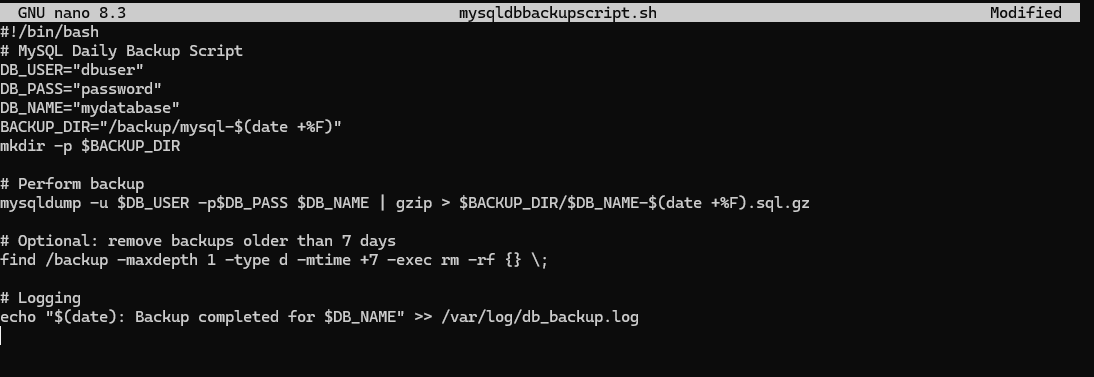
Once your script is ready and saved
Make the script executable:
chmod +x /usr/local/bin/mysqldbbackupscript.sh
 Use crontab for automation:
If you see an error like this:

it means crontab is not yet installed on your system.
For Amazon Linux 2023 (RHEL-based), install cronie with:

Then paste your cronjob into the editor.
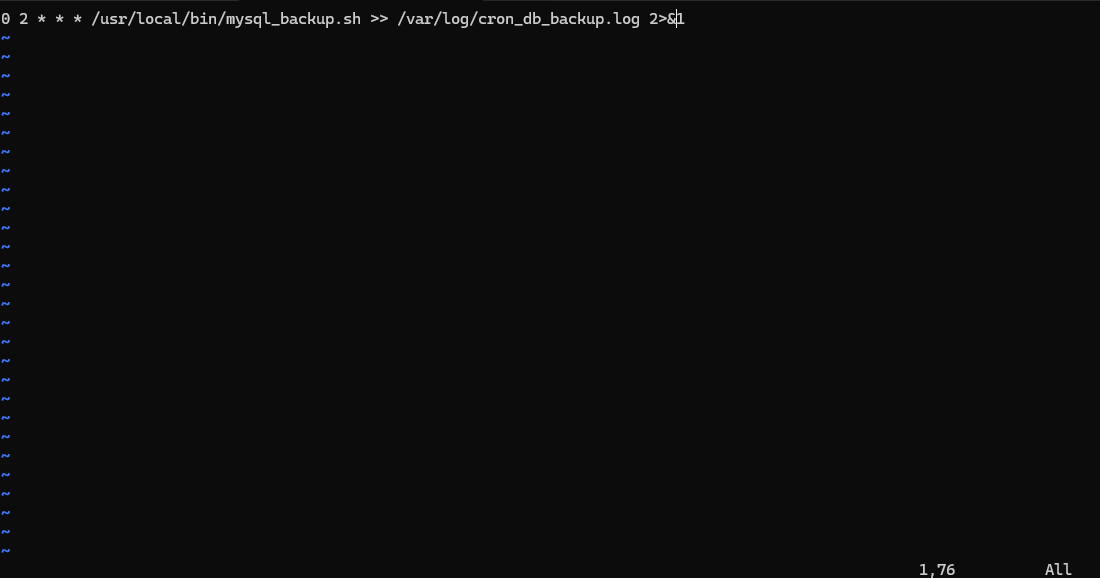
Then paste it into crontab
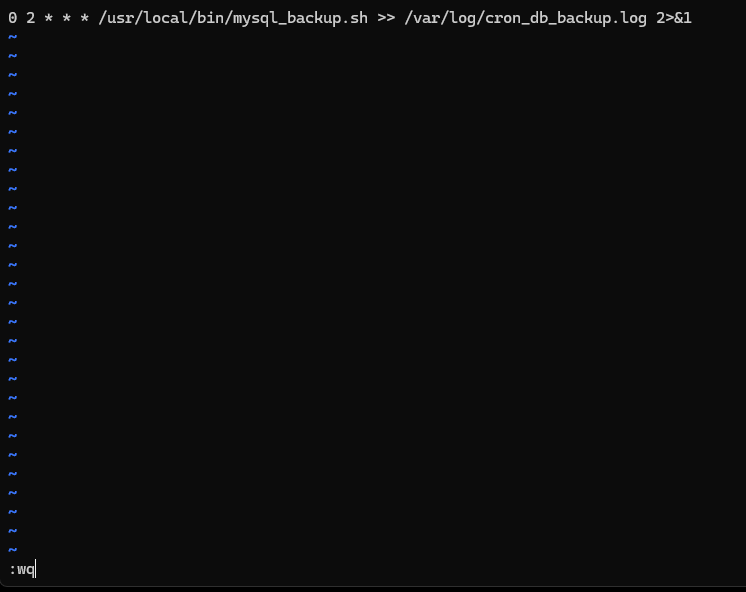
Note: Crontab uses vi/vim. To save and exit, press:Shift + : → type wq → Enter
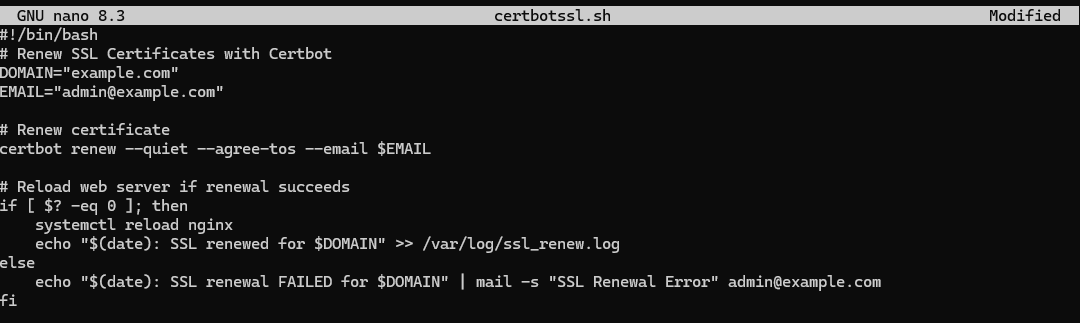
10.2 Certbot SSL Renewal#
Create the renewal script first:

Save it, then make it executable:
chmod +x ~/certbotssl.sh
Save it:
Open crontab again:
 To add multiple cronjobs, enter INSERT mode first by pressing
 O.
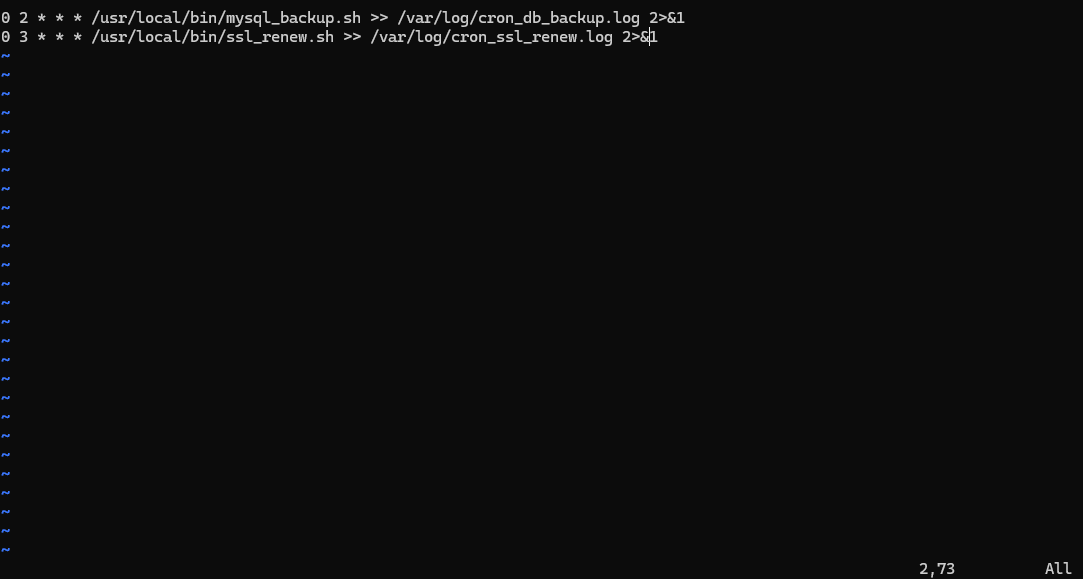
Once your cronjobs are added, save and exit using:Escape → Shift + : → type wq → Enter
10.3 Notes for Appendix Scripts#
Always test scripts in development/staging before production.
Ensure proper permissions:
chmod 700for scripts containing passwords.Logging is critical for troubleshooting automation failures.
Use email alerts or monitoring hooks for failures.
Adapt paths, usernames, and domains to your environment.